

Battery life is a critical factor in the performance and usability of your devices. Whether it’s your laptop, phone, or smartwatch, following these simple tips will help you extend battery life and keep your devices running longer.
Monitor Battery Health:
- All Devices: Regularly check battery health settings to see if it’s time for a replacement or adjustments.

Adjust Screen Brightness:
- Laptop: Lower your screen brightness and use adaptive brightness settings.
- Phone & Smartwatch: Enable auto-brightness or manually reduce brightness to a comfortable level.

Manage Background Apps:
- Laptop: Close unused apps and disable unnecessary startup programs.
- Phone & Smartwatch: Limit background app refresh and close apps you’re not using.

Enable Power-Saving Modes:
- Laptop: Use the built-in power-saving mode when running low on battery.
- Phone & Smartwatch: Activate battery saver modes, which reduce background activity and performance.

Update Software Regularly:
- All Devices: Keep your operating system and apps updated to benefit from efficiency improvements and bug fixes.

Limit Notifications:
- Phone & Smartwatch: Reduce the number of notifications you receive to minimize screen wakeups and vibrations.

Optimize Charging Habits:
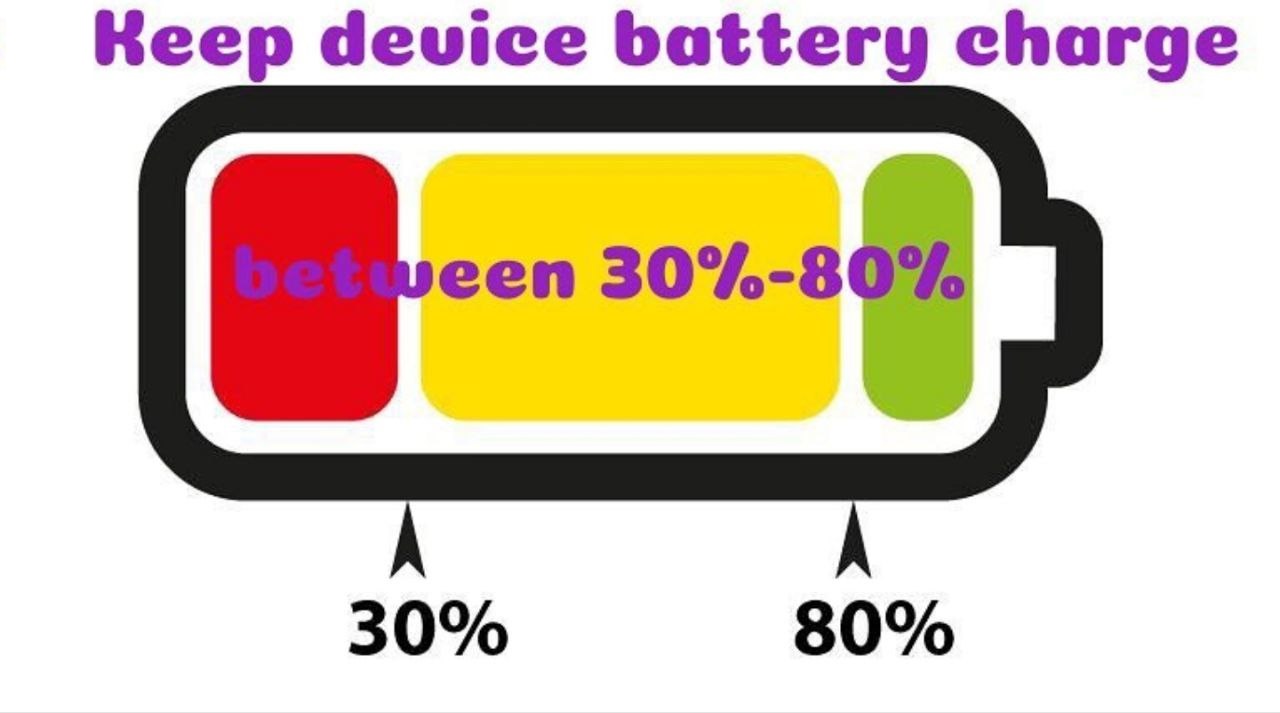
- Laptop & Phone: Avoid charging your device to 100% or letting it drop to 0%. Aim for a charge between 20% and 80%.
- Smartwatch: Avoid overnight charging or charge during short breaks to maintain optimal battery health.
Disable Unnecessary Features:
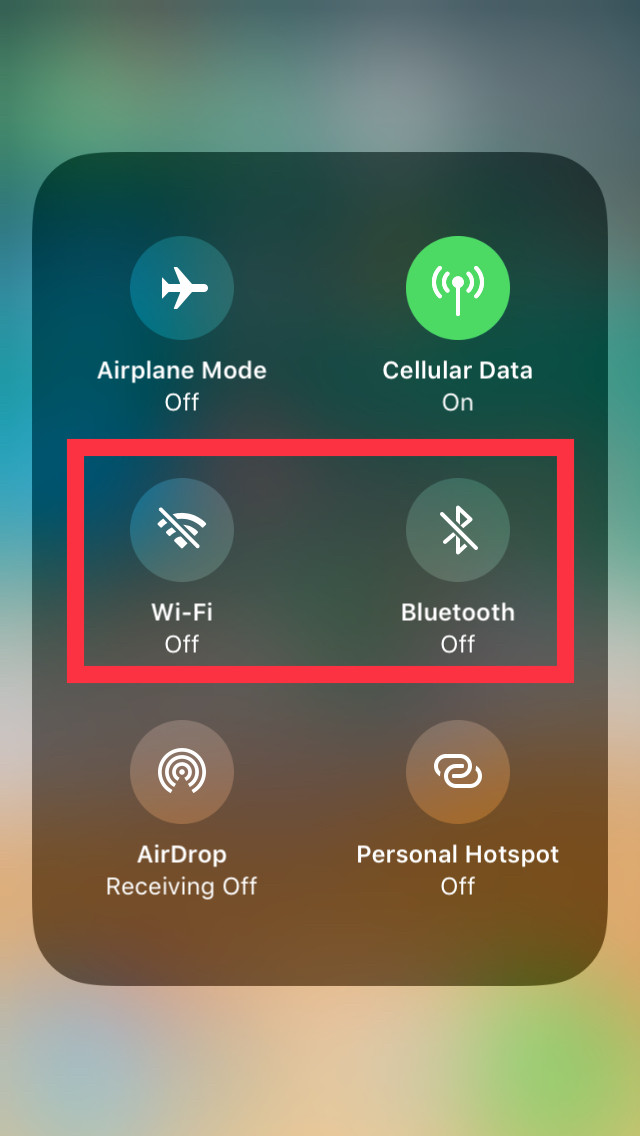
- Laptop: Turn off Bluetooth and Wi-Fi when not in use.
- Phone & Smartwatch: Disable features like GPS, Wi-Fi, and Bluetooth when they’re not needed.
Remove Device Case While Charging:
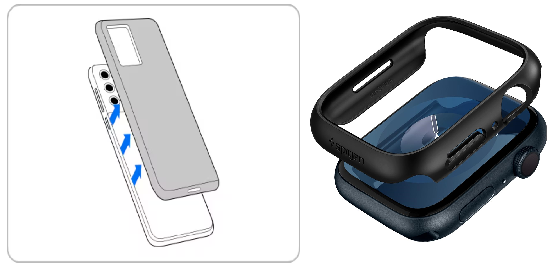
- Phone & Smartwatch: Removing the case can help reduce heat build-up during charging, which can protect the battery
Avoid High Temperatures
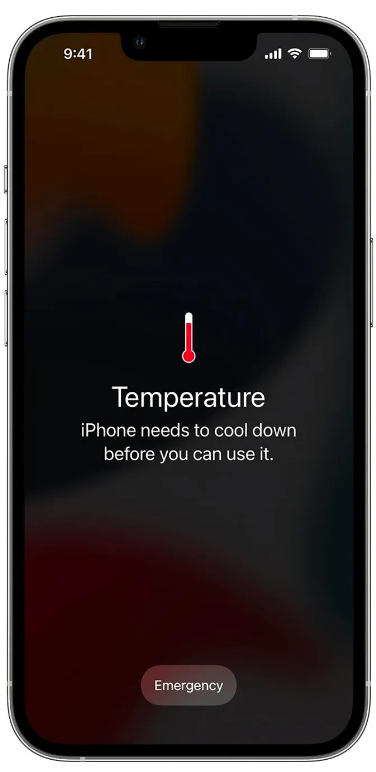
- All Devices: Keep your devices out of direct sunlight or hot environments, as high temperatures can degrade battery life.
Use OEM Chargers
- All Devices: Always use original equipment manufacturer (OEM) chargers to ensure your device gets the correct voltage and current.
Conclusion:
By following these simple tips, you can greatly extend the battery life of your laptop, phone, and smartwatch. Small changes can have a big impact, keeping your devices powered all day.
Our certified technicians offer expert battery replacement services for phones, tablets, and laptops, ensuring your device runs like new.
Leave A Comment