

Your Android device contains valuable personal information, making it a target for cyber threats. Protecting your Android device is essential for keeping your data secure. Here are some essential tips to enhance your Android device’s security.
Use Strong Passwords or Biometric Authentication:
- Set a strong PIN, pattern, or password, and use biometric options like fingerprint or facial recognition to lock your Android device securely.

Keep Your Software Updated:
- Regularly update your Android OS and apps to protect against the latest security vulnerabilities. Enable automatic updates for both the OS and apps.

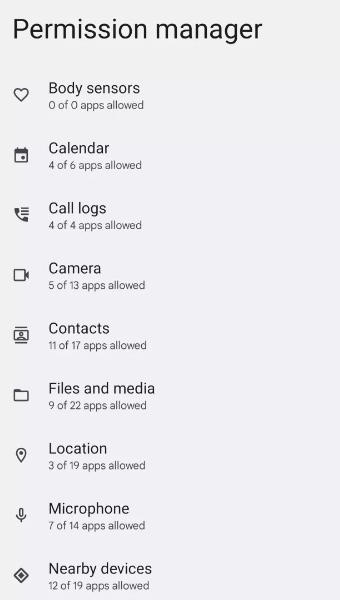
Be Cautious with App Permissions:
- Go to Settings > Privacy > Permission Manager to review and manage app permissions. Limit access to sensitive data and features.
Enable Two-Factor Authentication (2FA):
- Turn on 2FA for your Google account by going to Settings > Google > Manage your Google Account > Security > 2-Step Verification to add an extra layer of security.
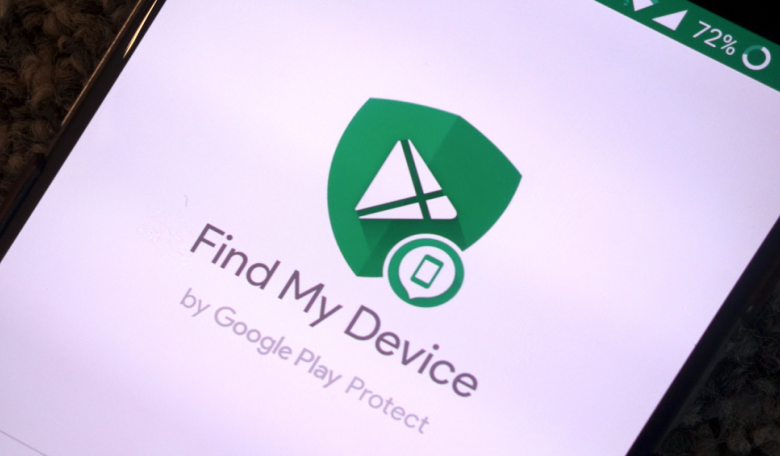
Use Find My Device:
- Enable Find My Device under Settings > Security > Find My Device to locate, lock, or erase your device if it’s lost or stolen.
Install Apps Only from Google Play Store:
- Download apps exclusively from the Google Play Store to avoid installing malicious software. Enable Play Protect under Google Play Store > Menu > Play Protect for extra security.

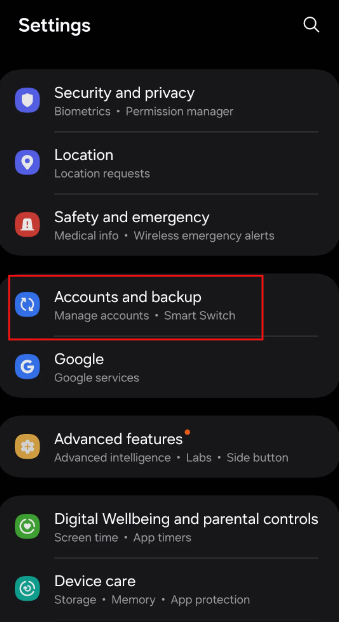
Regularly Back Up Your Data:
- Use Google Drive or other reliable backup solutions to back up your Android device regularly. Go to Settings > System > Backup and ensure backup is turned on.
Use Security Apps:
- Consider using reputable security apps that offer features like antivirus protection, secure browsing, and anti-theft tools available on the Google Play Store.

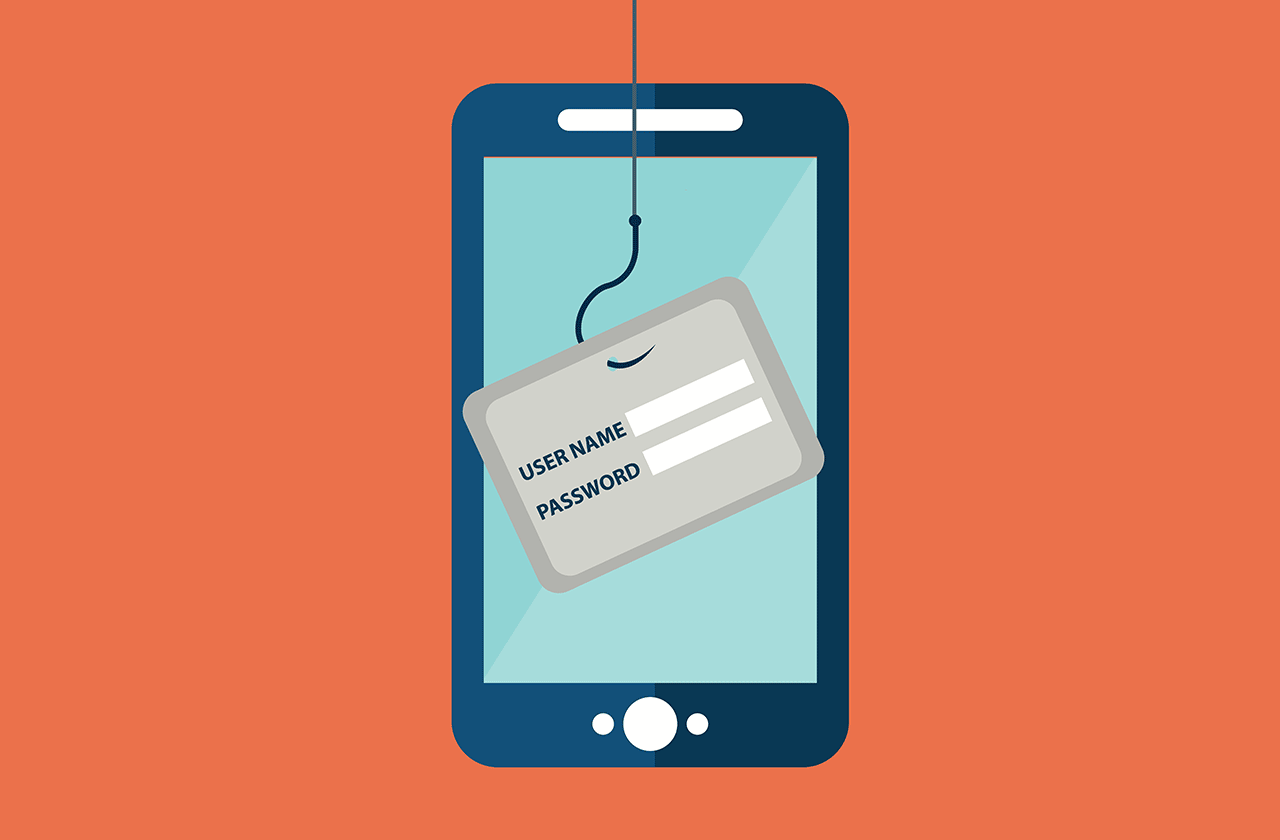
Be Wary of Phishing Attacks:
- Avoid clicking on suspicious links or providing personal information in response to unsolicited messages or emails. Use Google’s Safe Browsing feature in Chrome to protect against phishing.
Log Out of Apps When Not in Use:
- Log out of sensitive apps like banking or shopping apps after each session to prevent unauthorized access.

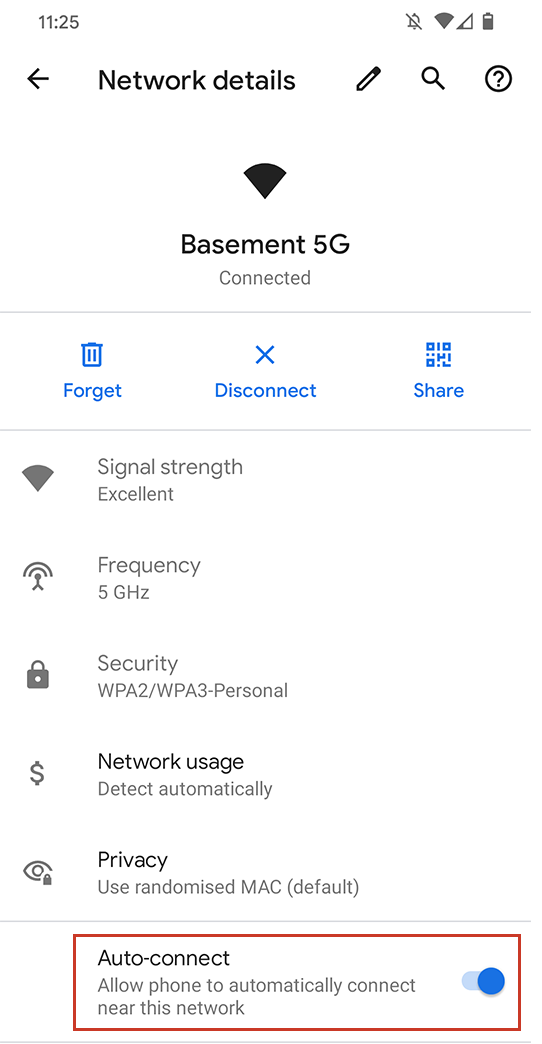
Disable Automatic Wi-Fi Connections:
- Go to Settings > Network & internet > Wi-Fi preferences and disable Connect to open networks to prevent your device from automatically connecting to insecure networks.
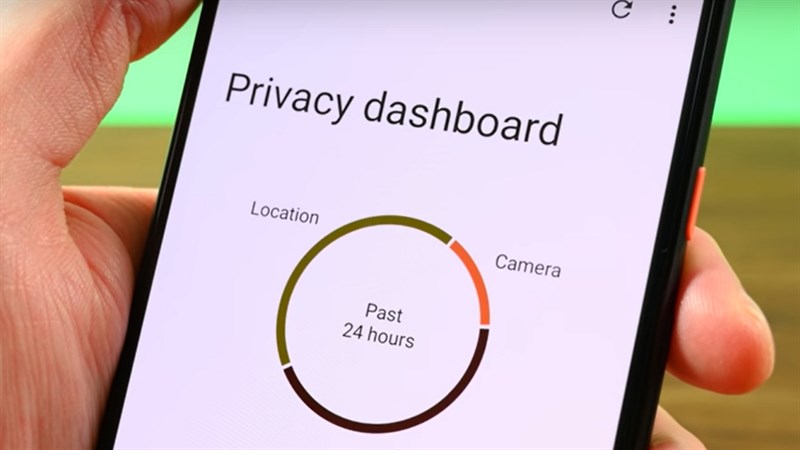
Use the Privacy Dashboard:
- Access the Privacy Dashboard by going to Settings > Privacy > Privacy Dashboard to monitor and control which apps are accessing your personal data.
Conclusion:
By following these essential tips, you can significantly enhance the security of your Android device, protecting your personal information from threats. Stay vigilant and proactive in maintaining your device’s security.
Our Certified Engineers are ready to address any concerns or questions regarding your Android phone’s security. Whether you’re facing malware attacks, unauthorized access, or permission issues, we can assist in cleaning your device, enhancing its trustworthiness, and safeguarding your data.
Leave A Comment